Thursday, December 25, 2025

How to delete watermark from images and videos, method- 4

 Perfect 👍

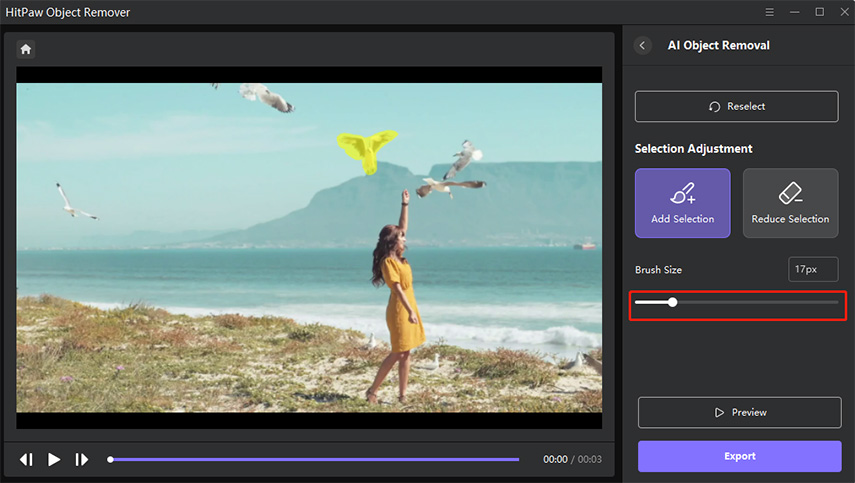
Here’s — HitPaw AI Video Object Remover (one of the strongest AI watermark removers right now).


🔹 HitPaw AI Video Object Remover (PC & Mac)

✅ Why HitPaw Is Powerful

  • 🤖 True AI removal (fills background naturally)

  • 🎯 Works on logos, text, timestamps

  • 🔄 Handles moving watermarks

  • 🎬 Keeps original resolution & aspect ratio


🧭 Step-by-Step Guide

1️⃣ Download & Install

👉 www,hitpaw.com/video-object-remover.html
Install on Windows or macOS


2️⃣ Import Your Video

  • Open HitPaw

  • Click Add Video

  • Select your video file


3️⃣ Select the Watermark

  • Use Brush / Box tool

  • Carefully paint over the watermark

  • If watermark moves → mark it across the timeline

📌 Tip: Don’t select extra background—AI works best with clean selection


4️⃣ Start AI Removal

  • Click Remove

  • AI analyzes frame-by-frame

  • Automatically reconstructs background

⏳ Time depends on video length & PC power


5️⃣ Preview & Export

  • Preview result

  • Click Export

  • Choose resolution & format

🎉 Done — watermark genuinely erased


Free vs Paid

VersionLimitation
FreePreview only / export with watermark
PaidFull export, no watermark

💡 If you only need 1–2 videos, you can test quality first before buying.


🔥 HitPaw vs Others (Quick Truth)

ToolAI EraseMoving LogoQuality
Online-Video-CutterLow
Media.io⚠️Medium
CapCutMedium
HitPaw⭐⭐⭐⭐⭐

Want the BEST FREE AI alternative next (no payment at all)?


Just type FREE AI 😎


Great! You chose Option 2 — DaVinci Resolve (Free & Professional-Grade Editor)

This is one of the most powerful free video editors in the world and can remove watermarks using masking & object-removal techniques.


🔹 What DaVinci Resolve Can Do

  • Precise cropping / masking

  • Patch or fill watermark areas

  • Frame-by-frame tracking

  • Professional results (used in movies/TV)

  • Completely free with no forced export watermark


🧭 Step-by-Step: Remove Watermark in DaVinci Resolve

1️⃣ Download & Install

👉 Search “DaVinci Resolve download” and install the free version from the official Black magic site.


2️⃣ Create New Project

  • Open Resolve → New Project

  • Name it → Create


3️⃣ Import Your Video

  • Drag your video into the Media Pool

  • Drop it on the Timeline


🧠 Method A — Simple Crop (Quick & Clean)

  1. Select your clip on the timeline

  2. Go to InspectorCropping

  3. Crop the area where the watermark appears

  4. Adjust until watermark is out of frame

  5. Deliver → Export video

✔ Works best if watermark is on the edge/corner
✔ No blur, no AI — just removes that portion


🧠 Method B — Mask + Fill (Better if crop cuts too much)

Step 1 — Create a Power Window

  1. Switch to Color page

  2. In Nodes panel, click node right of your clip

  3. Add Window (rectangle/ellipse)

  4. Draw mask over watermark


Step 2 — Track the Watermark

  1. In the same Color page

  2. Use Tracker (below viewer)

  3. Track forward so mask follows the logo


Step 3 — Clone/Blur to Hide

Two options:

  • Blur Feed

    • In Color, add Blur/Sharpen

    • Increase blur only inside the mask

  • Patch with Surrounding Pixels

    • Add Window + Blur

    • Lower window softness

    • Blend edges so the watermark area looks natural

💡 For best results, combine tracking + feathered mask + small blur


🧭 Export Your Finished Video

  1. Go to Deliver page

  2. Choose format (MP4 recommended)

  3. Click Add to Render Queue

  4. Start Render


🆚 Quick Tool Comparison

ToolTrue AI RemovalFreePro-LevelBest For
Online-Video-CutterBlur/Crop quick fix
Media.ioAI removal with limits
CapCutQuick edits
HitPawBest AI removal
DaVinci ResolveManual but powerfulProfessional cleanup

💡 Tips for Best Results in Resolve

Soften the mask edge — prevents sharp cutouts
✨ Track every frame if watermark moves
✨ If background is complex, beautify small blur rather than crop


Want the next advanced free AI-powered tool (no manual masking)?

Type AI Free 2 and I’ll give you another great option!

Image

Here are visual references for Option 2: DaVinci Resolve – Watermark Removal workflow 👇

DaVinci Resolve – Key Screens You’ll Use

What each image represents

1️⃣ Timeline view – where you place and select your video
2️⃣ Color Page (Power Window) – draw a mask over the watermark
3️⃣ Mask Tracking – track moving watermarks frame-by-frame
4️⃣ Inspector → Crop – quickest method if the watermark is at the edge

If you want, I can also show before vs after images or step-numbered screenshots (1 → 2 → 3) for easier following.

3 with image

Here’s Option 3 — MOBILE-ONLY solution (Android & iPhone) with images 👇
Best if you want to remove watermark using phone only.


🔹 Option 3: CapCut Mobile (FREE – Android & iOS)

✅ Why CapCut Mobile

  • 📱 Works on Android & iPhone

  • 🆓 100% free

  • 🚫 No export watermark

  • 🎯 Very easy for beginners


🧭 Method A: Crop Watermark (Best Quality)

  1. Open CapCut app

  2. Tap New Project

  3. Import your video

  4. Tap the video → Edit → Crop

  5. Crop out the watermark corner

  6. Export

✔ Best when watermark is in a corner
❌ Frame size slightly changes


🧭 Method B: Blur Watermark (Keeps Frame Size)

  1. Duplicate the video layer

  2. Select top layer → Effects → Blur

  3. Resize blur only over watermark

  4. Adjust opacity

  5. Export

✔ Keeps full video frame
✔ Looks clean for small logos


🧭 Method C: Cover Watermark (Smart Trick)

  1. Add Sticker / Shape

  2. Match background color

  3. Place over watermark

  4. Slight opacity (80–90%)

✔ Works well for static logos/text


🆚 Mobile Tool Comparison

AppAI EraseFreeBest For
CapCut MobileFast & clean
Remove & Add WatermarkSimple logos
VN EditorCorner watermarks
CapCut⭐ BestMost users

Important Tip

📌 Mobile apps cannot truly “AI erase” watermarks like PC tools.
They hide (crop/blur/cover) — still very effective for social media.

How to delete watermark from images and videos, method-2, 3

 Here’s the NEXT option — a tool that actually erases the watermark using AI (not just blur or crop).


🔹 Method 2: Remove Watermark Using Media.io (AI-Powered)

✅ Step-by-Step

Open the tool
👉www,media.io/video-watermark-remover.html
Upload your video
Click Upload Video (MP4, MOV, AVI supported).
Mark the watermark area
Draw a box over the logo/text
If the watermark moves, mark it across frames
Click “Remove Watermark”
AI analyzes frames
Fills the watermark area naturally
Download the clean video 🎉

⭐ Why This Is Better Than Online-Video-Cutter

FeatureOnline-Video-CutterMedia.io
Blur watermark
Crop watermark
AI erase watermark
Keeps original size❌ (crop changes size)
Moving watermark

*** Important Notes

Best results if the background is not too complex
Free version may add limits or export watermark
Processing time depends on video length

🔥 Want Another Option?

If you want:

100% free
No sign-up
Best for YouTube / TikTok videos


Here’s the NEXT toolcompletely FREE, powerful, and very popular.


🔹 Method 3: Remove Watermark Using CapCut (FREE – Desktop & Web)

✅ Why CapCut Is Excellent

  • 100% free

  • ✅ No forced export watermark

  • ✅ Works offline (desktop)

  • ✅ Best for YouTube, Facebook, TikTok


🧭 Method A: Remove Watermark by Cropping (Cleanest)

  1. Open CapCut

  2. Click New Project

  3. Import your video

  4. Select the video → Crop

  5. Crop out the watermark area

  6. Export video

✔ Best when watermark is in a corner


🧭 Method B: Remove Watermark Using Blur (If crop isn’t possible)

  1. Duplicate the video layer

  2. Put duplicate above the original

  3. Apply Blur to top layer

  4. Resize blur layer only over watermark

  5. Export

✔ Keeps original frame size


🧭 Method C: Cover Watermark (Smart Trick)

  1. Add a shape / sticker

  2. Match color with background

  3. Place over watermark

  4. Adjust opacity slightly

✔ Works well on static logos


📌 Comparison (So Far)

ToolTrue AI EraseFreeBest Use
Online-Video-CutterQuick blur/crop
Media.io❌ (limited)AI erase
CapCutBest free editor


How to delete watermark from images and videos, method-1

 Here’s how you can remove a watermark (logo/text) from a video using the Online-Video-Cutter.com tool (it has a watermark/logo removal feature) — plus some important tips about what it actually does:

✅ Steps to Remove a Watermark on Online-Video-Cutter.com

  1. Go to the watermark removal page

    • Visit: online-video-cutter.com/remove-logo, which is their watermark/logo removal tool. Online Video Cutter


  2. Upload your video

    • Click Choose File or drag your video onto the page. Online Video Cutter

  3. Select how you want to “remove” the watermark

    • Blur the watermark: Select the area with the logo/text and apply the blur tool if you don’t want to crop, but just hide the watermark. Online Video Cutter

    • Crop out the watermark: If blurring isn’t good enough, you can use the crop tool to cut out the part of the video that contains the watermark. This removes that area from the video frame. Online Video Cutter

  4. Apply changes

    • After selecting blur or cropping, click Apply to process the video. Online Video Cutter

  5. Download the edited video

    • Once processed, download your video without (or with reduced) watermark compared to the original. Online Video Cutter


    Important Notes About This Tool

It doesn’t magically erase a watermark like AI tools

  • The logo removal feature on Online-Video-Cutter doesn’t truly “erase” the watermark pixels using smart in painting. It either blurs the watermark or crops out that area from your video. Online Video Cutter

Blurring vs cropping

  • Blur: Makes the watermark much less visible, but still shows something where it was. Online Video Cutter

  • Crop: Removes that portion of the frame entirely, which may change the look (and aspect ratio) of your video. Online Video Cutter

Tool limitations

  • Works best if the watermark is in a corner or border area. Online Video Cutter

  • If the watermark is large or in the center, you might need a more powerful AI-powered remover (other online services can do this with more advanced algorithms). Fotor+1


🧠 If You Need a True AI Watermark Removal

Some online tools can intelligently erase the watermark (not just blur/crop):

  • Media.io AI remover (mark the watermark, AI erases it) Media.io

  • Other AI removers (upload, mark area, and download water-mark-free video) Fotor

These might produce a more seamless result than cropping or blurring.


Let me know if you want a step-by-step walk-through of another online AI watermark remover that fully erases the watermark!

Friday, December 19, 2025

How to Earn Money From Google AdSense


Google AdSense: The Ultimate Guide to Building a Digital Income

Among the many reliable ways to earn money online, Google AdSense stands out as one of the most trusted and popular methods. If you are looking for a clear roadmap on how to start, here is everything you need to know.

1. What is Google AdSense?

In simple terms, imagine your website or blog is a "Digital Shop." Google AdSense is like renting out the empty wall space of your shop to Google to display advertisements. Every time a visitor clicks on one of those ads, Google shares a significant portion of the revenue (typically 68%) with you!


2. The 4-Step Blueprint to Success

Step 1: Build a Strong Foundation

Your website is your greatest asset.

  • Pick a Specific Niche: Don’t try to cover everything. Choose a specific topic you are passionate about, such as "Rooftop Gardening," "Budget Smartphone Reviews," or "IELTS Preparation." The more specific your niche, the higher your earning potential.

  • Quality Content is Key: You need at least 20–30 high-quality, unique articles on your site. Google will not approve sites with copy-pasted or thin content.

Step 2: Drive Traffic (Attract Visitors)

Once your shop is ready, you need customers.

  • SEO (Search Engine Optimization): Optimize your articles so they appear at the top when people search on Google.

  • Social Media Marketing: Create a Facebook page or group for your blog and share your articles regularly to build a community.


Step 3: Get the "License" (AdSense Approval)

Once your website starts getting consistent daily visitors, apply for Google AdSense. Google will review your site to ensure it follows their policies. The approval process can take anywhere from a few days to a few weeks.

Step 4: Start Earning!

After approval, Google will provide you with a specific code. Once you place this code on your site, ads will automatically start appearing. For every click made by a visitor, dollars will begin to accumulate in your AdSense account.


3. Major Hurdles and How to Solve Them

ProblemSolution
Language BarriersYou don't need to be Shakespeare. Use tools like Grammarly and read English blogs daily. Simple, clear English often performs best.
Marketing ConfusionYou don't need a degree. Watch basic tutorials on YouTube about SEO and Social Media Marketing. It’s easier than it looks!
Fear of Getting BannedNever click on your own ads and never ask friends to click them. Stay honest and strictly follow Google’s Program Policies.

4. Success Secrets (The Pro-Tips)

  • Write for Humans, Not Robots: Don’t just write for search engines. If your content provides real value to people, Google will naturally rank you higher.

  • Use Lists and Bullets: Break down your information into points. This makes your articles easy to read and keeps visitors on your page longer.

  • Use Copyright-Free Images: Never steal images from Google Search. Use websites like Pexels or Unsplash for high-quality, free-to-use photos.

  • Monitor Your Account: Regularly check your CTR (Click-Through Rate). If you notice any suspicious activity, report it to Google immediately to protect your account.


5. How Do You Get Paid?

The best part is that you can receive your earnings directly into your local bank account in Bangladesh (e.g., Dutch-Bangla Bank, Islami Bank, Sonali Bank, etc.) through Wire Transfer. Many successful bloggers in Bangladesh are currently earning between $1,000 and $5,000 per month.

Conclusion

Google AdSense is not a "get-rich-quick" scheme. It requires patience, consistency, and hard work. However, if you stay dedicated and publish quality content regularly, you can expect to see a significant income within 3 to 6 months.

Turn your passion into your profession and start building your digital asset today!

How to delete watermark from images and videos, method- 4

 Perfect 👍 Here’s — HitPaw AI Video Object Remover (one of the strongest AI watermark removers right now). 🔹 HitPaw AI Video Object Remo...