
How to share your stories and become a successful publisher with a growing team, stable social traffic, and minimum investment after all?
Meet Phong – a blogger from Vietnam, who generates traffic through social networks and monetizes it with Monetag.
We will share Phong’s story with no sugarcoating — just real talk, with fails, struggles, and actionable tips.
How Did The Story Begin?
Phong spent his free time writing stories on his blog and sharing them on social media. In his posts, he shared what he knew about crypto, social media, and Google AdSense money-making. It was totally a hobby, but then he realized he could monetize his content.
Phong began his research: he learned how to optimize traffic, earn money from ads, and compared various monetization platforms.
Now, he has a full team of web engineers and content creators and has expanded his content beyond his favorite topics – now, he publishes articles, reviews, and opinions on gadgets, games, trends, and local news. His network now contains several sites, and all of them receive a huge portion from social networks – Facebook, Instagram, and X.
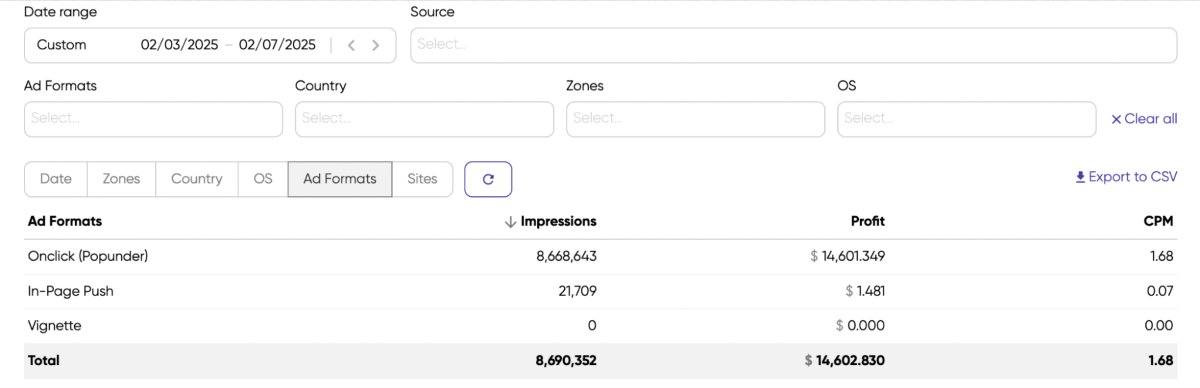
And the earnings prove it’s worth it, at least mixed with Monetag. Here are the overall stats for 4 months, sorted by format. As you see, the publisher uses only Smartlink (which is shown as Onclick on our statistics). He also tried In-Page Push before, but now totally relies on Smartlink.
And this shows how various GEOs perform. As Phong shared, he usually targets Asian and American countries because users there are more engaged than those in Europe or other continents:

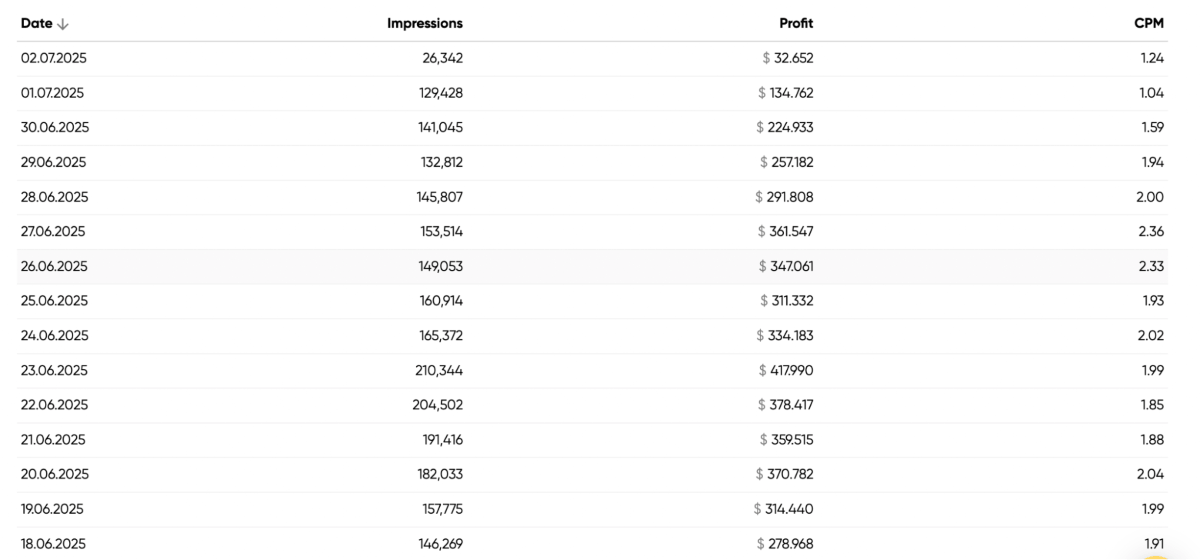
And here is the most illustrative screenshot: this is how much our publisher earns per day:
The Strategy: How To Reach Stable Profit?
So, how did Phong come to the results he has now? Here is what he did step by step (spoiler: nothing too complicated: consistency, a bit of tech knowledge, dedication, and good CPM rates from Monetag).
Step 1. Creating a blog
As Phong shared, it was easy and cheap to create a site thanks to free platforms. He chose ones with no limits for adding custom domains and the opportunity to place scripts to add ad codes. Until now, he still uses a free site from Metaconex – it’s been three years already.
Our publisher’s motto is ‘don’t overcomplicate’. As he says, ‘сreating a blog page and posting articles to make money is really simple with free platforms. I have learned, created, and operated many sites like this, and they are really stable. My purpose is not too complicated, there is no need to think complicatedly.’

2. Making content
A ready site is half the battle. But what to publish? Phong has an answer for this, too: his choice was the trending content. And, by all means, keep it simple again:
‘This is not too difficult. We can stay updated and find new topics from Google Trends.’
The site’s content goes to Facebook, adapted for a social media nature, and with links to the full article versions on the website. It can be some visual content, like short videos with links to see more.
So, the publisher relies on organic traffic coming from recommendations and trends, with no extra content hooks like newsletters.
For example, one of Phong’s sites highlights the latest news and reviews the newly released games, gadgets, and cars. The articles are something like ‘XBand Pro: What to Expect from the Next-Gen Smart Wearable’, and similar.
Here is an example of how it looks – we don’t disclose real screenshots from publishers’ sites, so this is to give you an idea:

However, it’s not as easy as just asking ChatGPT to create a new viral post. While it was easier before, and Phong’s team used auto-rewriting tools to rework the site’s content for Facebook, things are different now. Social media AI has become smart enough to recognize, remove, and mark as spam most sorts of auto-generated content, so it’s still 99% of manual work.

3. Attract the audience
Will a post on your personal page attract enough traffic to make a stable income from it? Maybe – why not? However, this involves too much luck to rely on it heavily. Here is what Phong does instead:
I build Facebook groups with content in many content categories. In general, the number of these groups is very large. And Facebook advertising is one of the budgets that must be spent very large for this work. And, no group will stay in good shape if the content doesn’t follow new trends.
So, got it? The formula is to build groups and use paid Facebook ads to promote them. And, Facebook algorithms also promote your content organically based on user interaction, so quality matters much. As Phong says, if your content goes old-fashioned, you might see very disappointing trends in your statistics:
It was an unforgettable experience when everything went downhill so quickly that I didn’t understand what was happening. The thing is, I focused too much on optimizing advertising revenue without thinking much about the audience experience. So, the social networking system was no longer as interactive as before: my content stopped going viral, and Facebook’s algorithm reduced the number of people reaching my group naturally soon after. That’s how Facebook’s algorithm works.

4. Monetize it!
When the content production and the traffic stream are up and running, it’s time to cash in. Phong began monetization with Google and other ad platforms, and has joined Monetag just recently. How does it work?
- He leads traffic from Facebook to his site.
- Site content contains Monetag Smartlink that opens a suitable offer for a particular user. The links are hidden behind buttons or within links to related articles.
- Users see offers when Smartlink is triggered, and the publisher earns from every 1000 views.
- And, this is super possible.
All of this is possible to combine with ads from other platforms. As our publisher says,
Google Ads are fully compatible with Monetag, and you can use both in parallel. And, Monetag ads are clean and do not annoy the audience like ads on a range of other platforms.
Final Words
Traffic from social networks is simpler and cheaper than traffic from Google search: building a community on social media is quicker than building SEO strategies. Phong’s team is going to make the most out of this opportunity:
Currently, we are growing every day. We refresh and create new content, fan pages, group, and team channel every day. I think we will expand unlimitedly in the future because social networks will never stop growing.
Have stable traffic flow from social media, and don’t know how to make it work for you? As you see, here is an option – so we are waiting for you at Monetag.
Read this list
How to Monetize a Sports Fan Website in Brazil and Earn $630k+ [Case study]
How a Ugandan Blogger Caught Hype and Earned Real Money on His Movie Fan Site
SEO Conspiracy Theories: What Publishers Secretly Want to Believe (But Try Not to)
How to Do an SEO Audit: 2026 Guide
Spring Into Bigger Profit Referral Promo: Spread the Word about Monetag and Get Your Prize
You may also like